Apple Id Password Change Tips
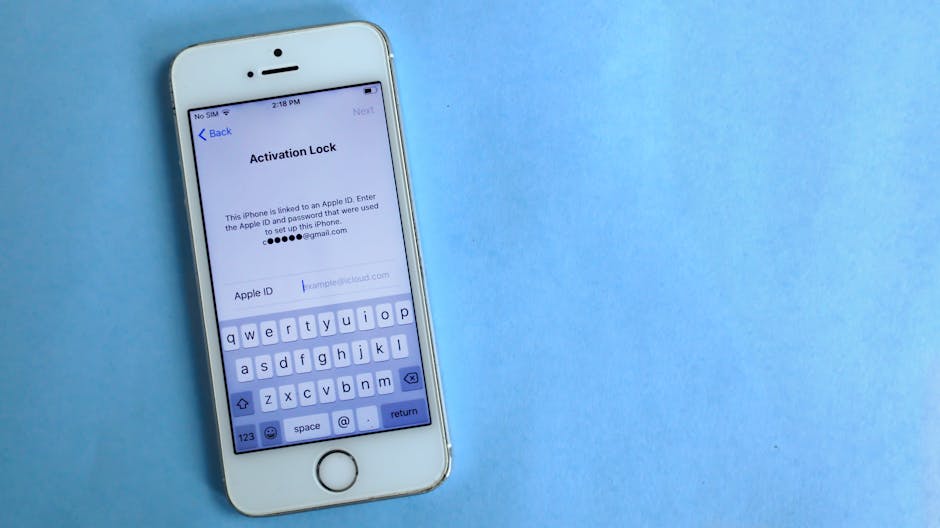
Mastering Your Apple ID Password: Essential Change Tips for Enhanced Security and Seamless Access
Changing your Apple ID password is a critical security measure. This single password acts as the master key to your entire Apple ecosystem, granting access to iCloud, App Store, Apple Music, Apple Pay, Find My iPhone, and more. A compromised Apple ID can lead to significant privacy breaches, financial loss, and device hijacking. Therefore, understanding the nuances of password change, security best practices, and troubleshooting common issues is paramount for every Apple user. This comprehensive guide will delve into the why, when, and how of changing your Apple ID password, equipping you with the knowledge to maintain robust security and uninterrupted access to your digital life.
When and Why You Should Change Your Apple ID Password
Several scenarios necessitate a password change. The most obvious trigger is a suspected security compromise. If you receive unusual notifications about your Apple ID, notice unauthorized purchases, or have experienced a data breach on another service where you reuse passwords, immediately change your Apple ID password. Even without a direct suspicion, regular password rotation is a sound security practice, especially for accounts holding sensitive information. Industry experts recommend changing critical passwords every 3-6 months. Furthermore, if you’ve shared your Apple ID password with anyone, even temporarily, or if a device logged into your Apple ID has been lost or stolen, a password change is non-negotiable. The introduction of new security features or significant software updates by Apple might also be a good prompt to review and potentially update your password to leverage enhanced protections. Finally, if you simply forget your password, the process of resetting it effectively becomes a password change.
The Official Apple ID Password Change Process: Step-by-Step
The method for changing your Apple ID password varies slightly depending on the device or platform you are using. The most common and recommended method is through Apple’s official website.
-
Via the Apple ID Website (Recommended):
- Navigate to the Apple ID account page (appleid.apple.com).
- Click on "Sign In" and enter your current Apple ID (usually your email address) and password.
- If prompted for two-factor authentication, complete the verification process.
- Once signed in, locate and click on the "Sign-In and Security" section.
- Select "Apple ID Password."
- You will be prompted to enter your current password for verification.
- Enter your new password twice to confirm. Ensure it meets Apple’s password requirements (discussed later).
- Click "Change Password."
-
Via iPhone, iPad, or iPod touch:
- Open the "Settings" app.
- Tap on your name at the top of the screen.
- Tap on "Password & Security."
- Tap on "Change Password."
- Enter your device passcode if prompted. This is a security measure to ensure you are the legitimate owner of the device.
- Enter your existing password for your Apple ID.
- Enter your new password twice to confirm.
- Tap "Change."
-
Via Mac:
- Open "System Settings" (or "System Preferences" on older macOS versions).
- Click on your Apple ID name at the top of the sidebar.
- Click on "Password & Security."
- Click "Change Password."
- Enter your Mac’s login password if prompted.
- Enter your current Apple ID password.
- Enter your new password twice to confirm.
- Click "Change Password."
Crucial Password Requirements for Optimal Security
Apple enforces specific criteria for Apple ID passwords to enhance security. Adhering to these guidelines is non-negotiable.
- Minimum Length: Your password must be at least 8 characters long. Shorter passwords are significantly easier for brute-force attacks.
- Character Types: It must include a combination of uppercase letters, lowercase letters, and at least one number. For instance, "Apple123" is a valid start, but "apple123" is not.
- No Personal Information: Avoid using easily guessable information such as your name, birthdate, pet’s name, or common words.
- Uniqueness: Never reuse passwords from other accounts. If one service is breached, all your accounts using that same password are at risk.
- Avoid Sequential or Repeated Characters: Passwords like "12345678" or "aaaaaaab" are weak and should be avoided.
Creating a Strong and Memorable Password
The challenge often lies in creating a password that is both strong and memorable. Here are effective strategies:
- Passphrases: Instead of a single word, use a phrase. For example, "MyFirstCarWasARedHondaCivic!" This is long, uses uppercase, lowercase, and numbers (if you substitute some letters with numbers like "My1stC@rW@sARedH0ndaCiviC!").
- Acronyms with Modifications: Take a memorable sentence, like "I love to eat pizza every Friday night!", and create an acronym: "ILTEPEFN!". Then, introduce variations: "ILTEPEFN!_2024".
- Password Managers: While not directly for creating the initial password, password managers are invaluable for generating and storing complex, unique passwords for all your online accounts, including your Apple ID. They can generate highly randomized passwords that are virtually impossible to guess and securely store them, allowing you to access them with a single master password. This is the most robust solution for managing multiple strong passwords.
- Word Combinations: Combine unrelated words with numbers and symbols. For example, "Sunshine&Rainbows77". This is more secure than dictionary words.
- Regular Review of Generated Passwords: If you use a password manager to generate your Apple ID password, periodically review its complexity and consider regenerating it every few months for an extra layer of security.
What to Do If You Forget Your Apple ID Password
Forgetting your password is a common occurrence. Fortunately, Apple provides a straightforward recovery process.
-
Using an Apple Device:
- On your iPhone, iPad, or iPod touch, go to "Settings" > "[Your Name]" > "Password & Security."
- Tap "Change Password."
- If you’re signed into iCloud, you might be prompted to enter your device passcode.
- Follow the on-screen prompts to reset your password.
-
Using the Apple ID Website:
- Go to the Apple ID account page (appleid.apple.com).
- Click on "Forgot Apple ID or password?"
- Enter your Apple ID (email address).
- You will be presented with options to verify your identity, which typically include:
- Answering Security Questions: If you set these up previously.
- Receiving an Email: A reset link will be sent to your Apple ID email address.
- Receiving a Text Message: A code will be sent to a trusted phone number associated with your account.
- Using a Trusted Device: If you have another Apple device signed into your Apple ID, you can receive a verification code there.
- Follow the instructions to complete the verification and reset your password.
-
Using the iforgot.apple.com Website:
- Visit iforgot.apple.com.
- Enter your Apple ID.
- Choose how you want to reset your password (e.g., get an email, answer security questions).
- Follow the on-screen instructions.
The Importance of Two-Factor Authentication (2FA)
Two-factor authentication is a vital security feature that significantly strengthens your Apple ID’s protection. It adds an extra layer of security beyond just your password. When enabled, signing in to your Apple ID on a new device or browser requires not only your password but also a verification code sent to one of your trusted devices (iPhone, iPad, Mac) or phone number. This makes it incredibly difficult for unauthorized individuals to access your account, even if they somehow obtain your password.
- Enabling 2FA:
- On an iPhone, iPad, or iPod touch: Go to "Settings" > "[Your Name]" > "Password & Security." Tap "Turn On Two-Factor Authentication" and follow the on-screen instructions.
- On a Mac: Go to "System Settings" (or "System Preferences") > "[Your Apple ID Name]" > "Password & Security." Click "Turn On Two-Factor Authentication" and follow the on-screen instructions.
- Via the Apple ID website: Sign in to appleid.apple.com, go to "Sign-In and Security," and select "Two-Factor Authentication."
What Happens After You Change Your Apple ID Password?
Changing your Apple ID password has several implications across your Apple devices and services.
- Signing Back In: You will be prompted to sign back into your Apple ID on all devices and services that use it. This includes your iPhone, iPad, Mac, Apple Watch, Apple TV, and any apps or services that utilize "Sign in with Apple."
- iCloud Data Synchronization: iCloud services like Photos, Contacts, Calendars, and Notes will temporarily stop syncing until you re-enter your new password on each device. Once you sign back in, synchronization will resume.
- App Store Purchases: You may be asked to re-enter your password to download or update apps from the App Store.
- Apple Pay: For security reasons, you might need to re-authenticate your Apple Pay devices.
- Find My Network: Your devices will continue to be locatable via Find My, but if a device was offline, it might require re-authentication upon reconnecting.
Troubleshooting Common Apple ID Password Change Issues
Despite the straightforward process, users can encounter problems. Here are common issues and their solutions:
- "Invalid Password" Error: This usually means the new password doesn’t meet Apple’s requirements (length, character types). Double-check the guidelines and try again. If you’re sure it meets the criteria, there might be a temporary glitch. Try a different browser or device.
- Forgotten Current Password: If you cannot recall your current password, you must use the password reset process via the Apple ID website or iforgot.apple.com.
- Two-Factor Authentication Codes Not Arriving: Ensure your trusted devices are connected to Wi-Fi or cellular data. Check your device’s time settings to ensure they are set automatically. If using a trusted phone number, verify that it’s active and receiving messages. Sometimes, a simple restart of your devices can resolve notification issues.
- "Your Apple ID is locked for security reasons": This occurs after too many incorrect password attempts. Wait for a period (usually an hour or more) before trying again, or follow the password reset process.
- Unable to Change Password on Device: Ensure your device’s operating system is up to date. Sometimes, older OS versions can have compatibility issues. Try changing the password via the Apple ID website as an alternative.
- Password Change Not Reflecting Everywhere: It can take some time for the password change to propagate across all Apple services and devices. Be patient. If after a few hours the old password still works on some devices, check that you’ve signed out and back in correctly on those devices.
Security Best Practices Beyond Just Changing Your Password
While regularly changing your password is a cornerstone of good security, a holistic approach is crucial.
- Enable Two-Factor Authentication (2FA): This cannot be stressed enough. It’s the single most effective step you can take.
- Review Trusted Devices Regularly: In your Apple ID settings, you can see a list of devices signed in. Remove any devices you no longer own or recognize.
- Be Wary of Phishing Attempts: Never click on suspicious links in emails or text messages claiming to be from Apple asking for your Apple ID password. Always navigate directly to Apple’s official websites for account management.
- Secure Your Devices: Use strong passcodes and Face ID/Touch ID on your iPhone, iPad, and Mac. Enable Find My on all your devices.
- Avoid Public Wi-Fi for Sensitive Transactions: When changing passwords or accessing sensitive accounts, use a secure home network or a trusted cellular connection.
- Regularly Audit App Permissions: On your iPhone and iPad, go to Settings > Privacy & Security to review which apps have access to your location, contacts, photos, etc. Revoke permissions for apps you don’t use or trust.
- Use "Sign in with Apple": For third-party apps and websites, "Sign in with Apple" offers enhanced privacy by allowing you to share only the necessary information and can even hide your email address.
Conclusion
Your Apple ID is the gateway to your digital life. Mastering the process of changing your password, understanding the security implications, and implementing robust security practices are essential for protecting your privacy and data. By following these tips, utilizing Apple’s built-in security features like two-factor authentication, and maintaining vigilance against potential threats, you can ensure seamless access to your Apple ecosystem while keeping your sensitive information safe and secure. Regular password changes, combined with a multi-layered security approach, are your strongest defense in the ever-evolving digital landscape.


