
iOS 18 Home Screen Customization: A New Era of Personalization
iOS 18 home screen customization sets the stage for a truly personalized experience, empowering users to transform their iPhones into unique reflections of their style and needs. From interactive widgets to custom themes, iOS 18 unlocks a level of customization never before seen, allowing you to create a home screen that is as individual as you are.
Imagine a home screen that not only looks stunning but also functions seamlessly with your daily routines. iOS 18 makes this vision a reality with its extensive customization features. With a vast array of widgets, themes, and interactive elements at your fingertips, you can craft a home screen that is both visually appealing and incredibly practical.
Introduction to iOS 18 Home Screen Customization
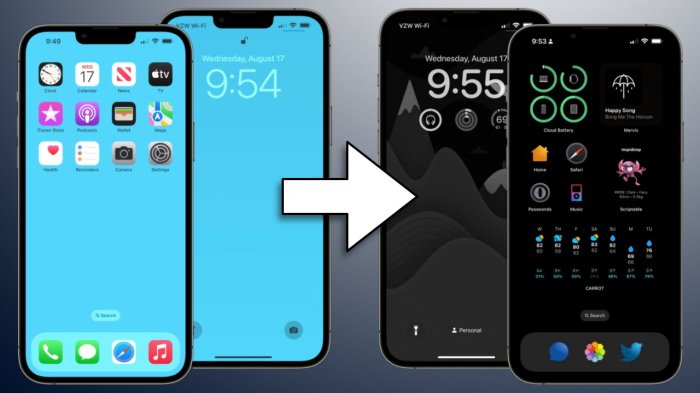
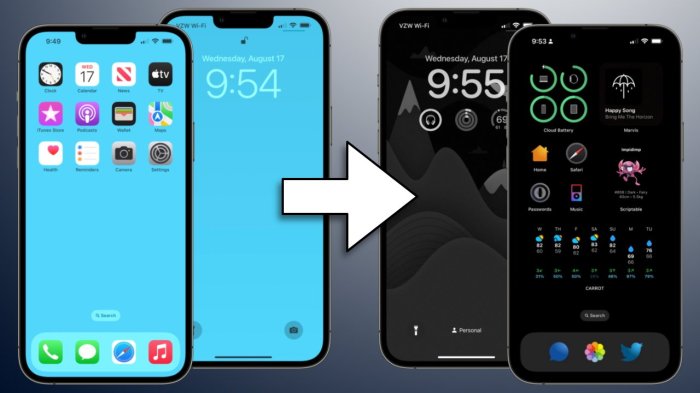
iOS 18 brings a wave of exciting changes to home screen customization, empowering users to personalize their iOS experience like never before. This update introduces a plethora of new features and enhancements, ranging from interactive widgets to dynamic wallpapers, allowing users to express their individuality and tailor their devices to their specific needs.
Interactive Widgets
Interactive widgets are a cornerstone of the iOS 18 home screen customization revolution. They offer a dynamic and engaging way to interact with your favorite apps directly from your home screen.
- Enhanced Functionality:Widgets are no longer static displays of information. They now offer interactive elements, allowing users to perform actions directly within the widget. For instance, you can control music playback, send messages, or manage your calendar events without opening the corresponding app.
- Customizable Size and Layout:Users have more control over the size and layout of widgets, enabling them to create a visually appealing and functional home screen.
- Dynamic Updates:Interactive widgets dynamically update in real-time, providing users with the latest information without needing to open the app. This could include live weather updates, stock prices, or news headlines.
Widgets and App Organization
iOS 18 introduces a significant evolution in home screen customization, allowing users to personalize their devices with dynamic widgets and intuitive app organization. Widgets offer a glimpse into your favorite apps and information without needing to open them, while enhanced app organization options ensure a streamlined and visually appealing home screen.
Widget Types and Functionality
Widgets are interactive elements that provide real-time information and quick access to app features directly on your home screen. They come in various sizes and offer diverse functionalities, catering to a wide range of user needs.
- Information Widgets:These widgets display data from various sources, such as weather, news, calendar events, and stock prices. For instance, a weather widget might show the current temperature, forecast, and hourly updates, allowing users to stay informed without opening a dedicated weather app.
- Action Widgets:These widgets provide quick access to app actions, like starting a timer, playing music, or controlling smart home devices. A music widget could offer controls for playing, pausing, and skipping tracks, enabling users to manage their music without navigating to the music app.
- App-Specific Widgets:These widgets offer a customized view of specific app features. A social media widget might display recent notifications or trending topics, while a productivity app widget could provide a to-do list or progress updates.
Widget Customization
iOS 18 empowers users with granular control over widget appearance and data displayed.
- Widget Size:Users can choose from various widget sizes, ranging from small icons to larger displays, depending on the desired level of information and screen space availability. This allows users to tailor the widget size to their specific needs and preferences.
- Widget Layout:Widgets can be customized with different layouts, such as a grid, list, or stack. This enables users to arrange information in a way that best suits their viewing habits and preferences, enhancing the visual appeal and clarity of the widget.
I’m super excited about the new customization options in iOS 18, especially the ability to create widgets that really reflect my personality. It’s like having a mini-website right on my home screen! Speaking of websites, the recent news of the google domains squarespace acquisition has me thinking about how this might impact website design and development.
It’ll be interesting to see how these changes affect the overall landscape of web design, and how it might influence the way I customize my iOS 18 home screen in the future.
- Data Display:Users can customize the data displayed by each widget. For example, a weather widget can be configured to show temperature, humidity, wind speed, or a combination of these factors, based on user preferences. This level of customization ensures that widgets display only the most relevant information to the user.
App and Widget Organization
iOS 18 introduces advanced tools for organizing apps and widgets, ensuring a clutter-free and visually appealing home screen.
- Folders:Users can group apps and widgets into folders, making it easier to navigate and access relevant content. Folders can be customized with names and icons, allowing users to categorize their apps and widgets logically. For instance, a folder named “Productivity” could contain apps like a to-do list, calendar, and notes, while a folder named “Entertainment” could include apps for streaming services, gaming, and social media.
- Smart Stacks:Smart Stacks are dynamic widgets that display a series of widgets in a stack, with the most relevant widget appearing at the top. The stack intelligently adjusts based on time, location, and user activity, providing users with the most relevant information at the right time.
For example, a Smart Stack might display a weather widget in the morning, followed by a calendar widget in the afternoon, and a music widget in the evening.
Visual Customization
iOS 18 introduces a plethora of new visual customization options, empowering users to personalize their home screens and make them truly their own. From vibrant themes and stunning wallpapers to the ability to customize app icons, iOS 18 takes home screen personalization to a whole new level.
Themes and Wallpapers, Ios 18 home screen customization
iOS 18 boasts a collection of curated themes that can instantly transform the look and feel of your home screen. These themes offer a cohesive visual experience, incorporating color palettes, fonts, and icons that complement each other seamlessly. For instance, the “Sunset” theme features warm oranges and reds, evoking a feeling of tranquility and warmth, while the “Midnight” theme utilizes deep blues and purples, creating a sophisticated and modern aesthetic.
I’m super excited about the new customization options coming with iOS 18, especially the ability to rearrange app icons and create folders on the home screen. I’m thinking of getting a new pair of AirPods to go with my new setup, and I saw that these are the cheapest AirPods you can buy this Amazon Prime Day – that’s a great deal! I’m going to have to check them out and see if they’re the right fit for me.
Once I’ve got my new AirPods, I can really start customizing my home screen to my heart’s content!
These themes go beyond just changing the wallpaper; they also modify the appearance of the app icons, the notification banners, and even the lock screen.Beyond pre-defined themes, iOS 18 allows users to create custom themes. Users can select their preferred color palettes, gradients, and textures to design a truly unique home screen experience.
The ability to create custom themes opens up a world of creative possibilities, allowing users to express their individuality and style.
For example, a user passionate about nature might create a theme with earthy greens and browns, incorporating images of forests and mountains as wallpapers.
App Icon Customization
iOS 18 introduces the exciting feature of app icon customization. Users can now personalize the appearance of their app icons, adding a unique touch to their home screen. The customization options are extensive, ranging from choosing different colors and gradients to using images or even creating custom icons from scratch.
For instance, a user might choose to replace the standard Instagram icon with a custom icon featuring their favorite Instagram filter.
Users can also utilize third-party apps that offer a vast library of pre-designed icons or tools to create custom icons. This allows for endless possibilities in personalizing the home screen.
A user might choose to replace the standard Safari icon with a custom icon featuring a ship’s wheel, symbolizing their love for exploration and adventure.
App icon customization not only enhances the visual appeal of the home screen but also allows users to create a personalized and organized layout that reflects their interests and personality.
Interactive Home Screen Elements
iOS 18 introduces a new level of interactivity to the Home Screen, allowing users to interact with widgets and apps in real-time. This transformation makes the Home Screen more dynamic and functional, providing instant access to information and actions.
Interactive Widgets
Interactive widgets provide real-time information and functionality directly on the Home Screen. Users can now interact with widgets to perform actions, view updates, and control devices without needing to open the corresponding app. For example, a weather widget might allow users to tap on a temperature reading to see a detailed forecast, while a music widget might allow users to control playback directly from the Home Screen.
This integration of interactivity enhances the user experience, offering a seamless and efficient way to access information and control devices.
Live Activities
Live Activities are dynamic updates from apps displayed on the Home Screen, providing real-time information on ongoing events or processes. These updates can be seen as a visual representation of what’s happening in the background, keeping users informed without needing to open the app.For example, a ride-sharing app might display a Live Activity showing the driver’s location and estimated arrival time, while a food delivery app might display the progress of the order, including estimated delivery time and the driver’s location.
With iOS 18’s rumored home screen customization features, I’m really excited to see how much control we’ll have over our digital landscapes. It’s a reminder that Apple’s always pushing boundaries, and it makes me wonder if their new AI-powered PCs, as seen in the recent ads taking aim at Microsoft’s Copilot machines , will offer equally innovative ways to personalize our computing experiences.
Maybe we’ll see a seamless blend of AI and visual design that makes our home screens even more intuitive and beautiful.
This real-time information enhances user engagement and provides a more intuitive and informative experience.
Home Screen Shortcuts
Home Screen Shortcuts provide quick access to frequently used actions within apps. These shortcuts are displayed as small icons on the Home Screen, allowing users to perform actions with a single tap.For example, a Home Screen Shortcut for a messaging app might allow users to quickly start a new message or access a specific conversation, while a Home Screen Shortcut for a music app might allow users to quickly start playing a specific playlist or album.
These shortcuts streamline workflows and enhance efficiency, allowing users to quickly access essential actions without needing to navigate through multiple menus.
Home Screen Gestures and Navigation
iOS 18 introduces a fresh wave of gesture-based navigation, revolutionizing how you interact with your home screen and manage your apps. These intuitive gestures simplify app switching and home screen access, enhancing your overall device experience. Let’s explore the new navigation features and how they elevate user interaction.
New Gestures for Navigation
These new gestures streamline app switching and home screen access, offering a more fluid and intuitive experience compared to previous methods.
- Swipe Up from the Bottom:This gesture brings you back to the home screen from any app, providing a consistent and efficient way to return to the starting point. It replaces the traditional home button press, simplifying navigation.
- Swipe Left or Right on the Bottom Edge:This gesture enables seamless switching between recently used apps. It eliminates the need for multiple taps on the app switcher, creating a more streamlined workflow.
- Swipe Up and Hold:This gesture reveals a new multitasking view, allowing you to quickly access and manage all your open apps. You can easily close apps or switch between them using a simple drag-and-drop motion.
Enhanced User Experience
These gestures offer several advantages, contributing to a more intuitive and efficient user experience:
- Faster Navigation:The gestures are quicker and more responsive than traditional methods, minimizing time spent navigating between apps and the home screen.
- One-Handed Operation:The gestures are designed for comfortable one-handed operation, making it easier to navigate your device on the go.
- Reduced Clutter:By eliminating the need for dedicated buttons, the home screen feels less cluttered and more visually appealing.
Comparison with Previous Methods
While the new gesture-based navigation offers significant advantages, it’s essential to acknowledge the differences compared to previous methods:
- Learning Curve:New users might require a short learning curve to familiarize themselves with the gestures. However, the intuitive nature of the gestures makes them easy to grasp quickly.
- Accessibility:For users with certain physical limitations, the gestures might pose a challenge. However, iOS 18 includes accessibility features that allow customization and alternative navigation methods.
- Familiarization:The new gestures offer a more efficient and modern approach to navigation, but some users might miss the familiarity of the traditional home button and app switcher.
Advanced Customization Techniques
iOS 18’s home screen customization offers a wealth of options to personalize your device. This section delves into advanced techniques, allowing you to create truly unique and functional home screen layouts.
Creating Custom Home Screen Layouts
To create a custom home screen layout, you’ll need to leverage the new features introduced in iOS
18. Here’s a step-by-step guide
- Start with a Clean Slate:Begin by rearranging your apps and widgets. You can move them around freely, delete unwanted apps, and create new folders. Consider grouping apps by category, functionality, or frequency of use.
- Utilize Smart Stacks:Smart Stacks are a powerful tool for organizing multiple widgets on a single home screen space. Create a stack of related widgets and use the swipe gesture to cycle through them. For example, a stack could contain a weather widget, a calendar widget, and a news widget.
- Embrace Widgets:iOS 18 introduces new and interactive widgets. Explore the various options and choose widgets that align with your needs and interests. Widgets can display information, provide quick actions, and enhance your home screen’s functionality.
- Customize Widget Appearance:Many widgets offer customization options, allowing you to adjust their size, color, and font style. Experiment with different settings to create a visually appealing and cohesive home screen.
- Experiment with Home Screen Layouts:Don’t be afraid to try different layouts. Play around with the placement of apps, widgets, and folders. Consider creating dedicated spaces for specific tasks or interests. You can even create a home screen specifically for work or personal use.
- Utilize Home Screen Gestures:iOS 18 introduces new gestures for navigating your home screen. These gestures can streamline your interactions with apps, widgets, and folders, creating a more efficient and intuitive experience.
- Personalize with Wallpapers:Choose a wallpaper that complements your home screen layout. iOS 18 offers a vast selection of dynamic and static wallpapers, or you can create your own using photos or designs.
Examples of Home Screen Layouts
Here are some examples of different home screen layouts, showcasing the versatility of customization options:
| Layout | Description |
|---|---|
| Productivity Focused | This layout prioritizes apps and widgets related to work, tasks, and scheduling. It features a prominent calendar widget, a to-do list app, and a notes app. |
| Entertainment Hub | This layout focuses on apps and widgets for entertainment, such as music streaming services, video platforms, and gaming apps. It includes a large widget displaying current music playback and a folder containing all entertainment apps. |
| Minimalist Design | This layout emphasizes simplicity and clarity. It features a clean and uncluttered home screen with minimal apps and widgets. The focus is on essential apps and information. |
| Personalized Home Screen | This layout reflects the user’s unique interests and preferences. It may include a combination of apps, widgets, and folders that cater to specific hobbies, passions, or activities. |
Accessibility and Customization
iOS 18 takes a significant step towards inclusivity by offering a wide range of accessibility features that empower users with disabilities to customize their home screen experience. These features go beyond mere visual adjustments and provide a comprehensive approach to tailoring the interface to individual needs.
Personalized Settings for Accessibility
iOS 18 provides users with the ability to adjust various settings to enhance their home screen experience. These settings cater to different needs and preferences, ensuring a more accessible and personalized interface.
- Larger Font Sizes:Users can increase the font size on their home screen, making text more legible for those with visual impairments. This adjustment can be applied globally or selectively to specific apps, allowing for a customized experience.
- High-Contrast Themes:iOS 18 introduces high-contrast themes that improve readability for users with low vision. These themes utilize contrasting colors, making text and icons stand out against the background, enhancing clarity and reducing eye strain.
- Voice Control:For users who have difficulty interacting with the touchscreen, iOS 18 offers advanced voice control capabilities. Users can navigate their home screen, open apps, and perform various tasks using their voice, providing a hands-free and intuitive experience.
Examples of Accessibility Features in Action
Here are some real-world examples of how these accessibility features empower users to tailor their home screen experience:
- A user with low vision can adjust the font size to make text on app icons and notifications more legible.This allows them to easily identify and interact with the desired apps and information.
- A user with a visual impairment can activate a high-contrast theme to enhance the visibility of icons and text on the home screen.This makes it easier to differentiate between elements and navigate the interface.
- A user with motor difficulties can use voice control to open apps, navigate menus, and perform other tasks without having to physically touch the screen.This provides a hands-free and accessible way to interact with the device.
Future Trends in Home Screen Customization: Ios 18 Home Screen Customization
The introduction of iOS 18 has brought about significant advancements in home screen customization, paving the way for exciting future possibilities. With the growing emphasis on personalization and user experience, we can expect even more innovative features and functionalities in the coming years.
Evolution of Widgets
The advancements in iOS 18 widgets, particularly their interactive capabilities, suggest a future where widgets become even more dynamic and contextually relevant. We can anticipate a rise in:
- Adaptive Widgets:Widgets that automatically adjust their size, content, and functionality based on the user’s context, time of day, location, and other relevant factors. For example, a weather widget could dynamically display different information based on the current weather conditions or the user’s location.
- Interactive Widgets:Widgets that offer more than just static information. Users could directly interact with widgets to control smart home devices, manage tasks, or access specific features within an app. For instance, a music player widget could allow users to control playback directly from the home screen.
- Multi-functional Widgets:Widgets that combine functionalities from multiple apps or services. A single widget could provide a consolidated view of relevant information from different sources, such as calendar events, weather updates, and news headlines.
The Rise of AI-Powered Personalization
The integration of AI and machine learning into iOS 18’s home screen customization features signifies a future where personalized experiences take center stage. This will likely lead to:
- Predictive Home Screen Organization:AI algorithms could analyze user behavior and preferences to predict the most relevant apps and widgets to display on the home screen. This could involve automatically rearranging icons based on usage patterns or suggesting new widgets based on the user’s interests.
- Dynamic Theme Generation:AI could create personalized themes based on user preferences, including color palettes, icon styles, and even wallpaper choices. This would allow users to express their unique style without having to manually customize every element.
- Contextual Home Screen Adaptation:AI could dynamically adjust the home screen based on the user’s location, time of day, and current activities. For instance, the home screen could automatically display travel-related apps and widgets when the user is at an airport or display relevant work apps during office hours.