

Microsoft Excel Training Online: Master Essential Skills
Microsoft Excel training online has become increasingly popular, offering a flexible and accessible way to learn this powerful tool. Whether you’re a complete beginner or looking to refine your skills, online courses provide a structured and engaging learning experience.
From basic functionalities like SUM and AVERAGE to advanced techniques like creating macros and using VBA, online training caters to diverse skill levels. You can choose from self-paced courses that allow you to learn at your own speed or instructor-led courses that provide interactive guidance and personalized feedback.
Introduction to Microsoft Excel
Microsoft Excel is a powerful spreadsheet software that has become an indispensable tool for individuals and organizations across various industries. It allows users to organize, analyze, and visualize data effectively, making it an essential skill in today’s digital world.
Core Functionalities of Microsoft Excel
Excel offers a wide range of functionalities that cater to various data management and analysis needs. Some of its core functionalities include:
- Data Entry and Organization:Excel provides a structured environment for entering, organizing, and managing data in rows and columns. This allows users to create spreadsheets for tasks such as budgeting, inventory management, and customer tracking.
- Formulas and Calculations:Excel’s powerful formula engine enables users to perform complex calculations, automate tasks, and derive insights from data. Users can create custom formulas using built-in functions and operators to perform calculations like addition, subtraction, multiplication, division, and more.
- Data Visualization:Excel offers a variety of chart types, including bar charts, line charts, pie charts, and scatter plots, to visually represent data and make it easier to understand and interpret. These charts can be customized to highlight key trends, patterns, and relationships within the data.
- Data Analysis:Excel provides various tools for data analysis, including sorting, filtering, and pivot tables. These tools allow users to extract meaningful insights from large datasets, identify trends, and make informed decisions based on the data.
- Collaboration and Sharing:Excel allows users to collaborate on spreadsheets with others, enabling real-time co-editing and sharing of data. This facilitates teamwork and communication, enabling organizations to work together on projects and share information effectively.
Use Cases of Microsoft Excel Across Industries
Excel finds application across various industries, making it a valuable tool for professionals in diverse fields. Some common use cases include:
- Finance:Financial analysts use Excel for budgeting, forecasting, financial modeling, and analyzing investment performance. It helps them track expenses, manage cash flow, and make informed financial decisions.
- Marketing:Marketers utilize Excel for campaign tracking, customer segmentation, analyzing marketing data, and creating reports. It helps them understand customer behavior, measure campaign effectiveness, and optimize marketing strategies.
- Sales:Sales professionals rely on Excel for sales forecasting, tracking sales performance, managing customer relationships, and creating sales reports. It helps them identify sales trends, monitor progress, and optimize sales strategies.
- Human Resources:HR departments use Excel for employee data management, payroll processing, performance tracking, and creating reports. It helps them streamline HR processes, manage employee records, and make informed decisions about recruitment, compensation, and training.
- Education:Educators use Excel for creating lesson plans, grading assignments, tracking student progress, and analyzing educational data. It helps them manage student information, assess learning outcomes, and improve teaching methods.
Benefits of Learning Microsoft Excel
Learning Microsoft Excel offers numerous benefits for individuals and organizations:
- Enhanced Data Management Skills:Excel equips users with the skills to effectively organize, analyze, and manage data, making them more efficient and productive in their work.
- Improved Decision-Making:Excel’s data analysis capabilities allow users to extract insights from data, identify trends, and make informed decisions based on evidence.
- Increased Job Opportunities:Proficiency in Excel is a highly sought-after skill in today’s job market, opening doors to various career opportunities and enhancing employability.
- Enhanced Productivity and Efficiency:Excel’s automation features and formula engine streamline repetitive tasks, saving time and increasing productivity.
- Improved Communication and Collaboration:Excel’s collaborative features facilitate teamwork, enabling individuals to share data and work together on projects effectively.
Online Training Options
Learning Microsoft Excel online offers flexibility and accessibility, allowing you to acquire valuable skills at your own pace. There are numerous platforms and courses available, catering to various learning styles and skill levels.
Comparing Online Training Platforms
Choosing the right online training platform for Microsoft Excel is crucial. Several platforms offer diverse features and learning experiences.
- Udemy:Known for its vast selection of courses, Udemy provides a wide range of Excel training options, from beginner to advanced levels. It features both self-paced and instructor-led courses, allowing learners to choose their preferred learning method. The platform’s affordability is a significant advantage, with frequent discounts and promotions.
- LinkedIn Learning:This platform focuses on professional development and offers high-quality Excel training courses designed to enhance career skills. The courses are typically concise and practical, covering essential concepts and techniques. LinkedIn Learning is well-suited for individuals seeking to expand their professional expertise.
- Coursera:Renowned for its partnership with top universities and institutions, Coursera provides a comprehensive range of Excel courses, including those offered by prestigious universities like Stanford and the University of Michigan. This platform offers a structured learning experience, with certificates of completion available for certain courses.
Self-Paced vs. Instructor-Led Courses
The choice between self-paced and instructor-led courses depends on individual learning preferences and needs.
- Self-paced coursesoffer flexibility and convenience, allowing learners to progress at their own pace and revisit materials as needed. This option is suitable for individuals who prefer independent learning and have a flexible schedule. However, self-paced courses may require more self-discipline and motivation to stay on track.
- Instructor-led coursesprovide a structured learning experience with real-time guidance and feedback from an instructor. These courses are ideal for learners who prefer interactive learning and require personalized support. However, instructor-led courses often have fixed schedules and may not offer the same flexibility as self-paced options.
Reputable Online Training Providers
Several reputable online training providers offer high-quality Microsoft Excel courses.
- Microsoft Learn:Microsoft’s official learning platform offers free and paid courses on various topics, including Excel. The platform provides comprehensive training materials and practical exercises, designed to enhance proficiency in Microsoft products.
- Skillshare:This platform features a wide range of creative and professional development courses, including Excel training. Skillshare offers a subscription-based model, providing access to a vast library of courses for a monthly fee.
- edX:A platform offering online courses from leading universities and institutions, edX provides a diverse range of Excel training options. The platform features both free and paid courses, with certificates of completion available for certain programs.
Essential Excel Skills for Beginners
Excel is a powerful tool for managing and analyzing data. It’s used across various industries, from finance and accounting to marketing and sales. Even if you’re not a data analyst, understanding the basics of Excel can be incredibly beneficial in your personal and professional life.
This section will cover some essential Excel skills that every beginner should know.
Basic Excel Functions
Understanding basic Excel functions can significantly simplify your data analysis. These functions allow you to perform calculations, count data, and find averages without manually entering formulas.
- SUM: Adds up a range of cells. For example, to sum the values in cells A1 to A5, you would use the formula:
=SUM(A1:A5) - AVERAGE: Calculates the average of a range of cells. To find the average of cells B1 to B10, you would use:
=AVERAGE(B1:B10) - COUNT: Counts the number of cells in a range that contain numbers. For example, to count the number of cells with numbers in cells C1 to C10, you would use:
=COUNT(C1:C10)
Creating Simple Formulas and Using Cell Referencing
Formulas are the heart of Excel, allowing you to perform calculations and automate tasks. Simple formulas often involve basic mathematical operations like addition, subtraction, multiplication, and division.
- To add the values in cells A1 and B1, you would use the formula:
=A1+B1 - To subtract the value in cell B2 from the value in cell A2, you would use:
=A2-B2 - To multiply the values in cells C3 and D3, you would use:
=C3*D3 - To divide the value in cell E4 by the value in cell F4, you would use:
=E4/F4
Cell referencing allows you to refer to specific cells in your formulas. Using absolute cell references (using the dollar sign, $) ensures that the reference remains fixed even when the formula is copied to other cells. For example, if you wanted to multiply the value in cell A1 by a constant value of 10, you would use the formula: =A1*$B$1.
This ensures that the value in cell B1 remains fixed even if you copy the formula to other cells.
Learning Microsoft Excel online can be a game-changer for your productivity, and while I’m busy mastering pivot tables and formulas, I stumbled upon some exciting news: logitech announces m4 ipad pro and m2 ipad air keyboard and trackpad accessories undercutting apples dollar299 magic keyboard.
This could be a game-changer for iPad users who want a more affordable and versatile keyboard setup, especially when paired with the power of Excel on the go!
Data Formatting and Data Validation
Data formatting makes your spreadsheets more readable and visually appealing. You can format numbers, dates, text, and even apply different styles to improve clarity and consistency.
- Number Formatting: You can format numbers to display as currency, percentages, scientific notation, or with specific decimal places. For example, you can format a cell to display a number as currency with two decimal places.
- Date Formatting: Excel allows you to format dates in various ways, such as MM/DD/YYYY, DD/MM/YYYY, or YYYY-MM-DD. This ensures that dates are displayed consistently in your spreadsheet.
- Text Formatting: You can format text to change font style, size, color, and alignment. You can also apply bold, italics, or underline to highlight specific text.
Data validation helps ensure that the data entered into your spreadsheet is accurate and consistent. You can use data validation to set specific rules for the data that can be entered into a cell, such as restricting the input to numbers only or limiting the range of acceptable values.
For example, you can create a data validation rule that only allows dates between January 1st, 2023, and December 31st, 2023, to be entered into a specific cell. This helps prevent errors and ensures that the data in your spreadsheet is reliable.
Intermediate Excel Techniques
Mastering intermediate Excel techniques empowers you to perform more complex data analysis and present information in a compelling way. This section will delve into powerful features that enhance your data manipulation and visualization capabilities.
Conditional Formatting
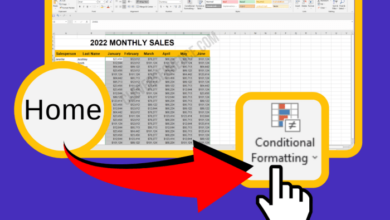
Conditional formatting allows you to apply visual styles to cells based on specific criteria. This can help you quickly identify important data points, highlight trends, or flag potential errors.
- Highlighting Cells: You can highlight cells based on their values (e.g., cells greater than 100), their text content (e.g., cells containing “error”), or their cell formatting (e.g., cells with a specific date format).
- Data Bars: Data bars provide a visual representation of the relative value of each cell within a range. Longer bars indicate larger values, while shorter bars represent smaller values.
- Color Scales: Color scales use a gradient of colors to represent data values. Cells with higher values are displayed in darker colors, while cells with lower values are displayed in lighter colors.
- Icon Sets: Icon sets display icons next to cells based on their values. For example, you can use green arrows for positive values, red arrows for negative values, and yellow arrows for zero values.
Data Visualization Tools
Excel provides a wide range of data visualization tools that allow you to create compelling charts and graphs. These tools help you to present your data in a clear and concise manner, making it easier to understand and interpret.
- Column Charts: Column charts are ideal for comparing values across different categories. They are particularly useful for displaying data over time or for comparing performance across different groups.
- Line Charts: Line charts are used to show trends over time. They are particularly useful for displaying data that changes continuously, such as stock prices or sales figures.
- Pie Charts: Pie charts are used to show the proportion of each category within a whole. They are particularly useful for displaying data that represents a part of a whole, such as market share or budget allocation.
- Scatter Charts: Scatter charts are used to show the relationship between two variables. They are particularly useful for identifying trends or patterns in data.
Creating Pivot Tables and Charts
Pivot tables and charts are powerful tools for analyzing and summarizing large datasets. They allow you to quickly group and aggregate data, identify patterns, and create insightful visualizations.
- Pivot Tables: Pivot tables allow you to summarize and analyze data by grouping it into categories. You can create multiple levels of grouping and filter the data to focus on specific areas of interest.
- Pivot Charts: Pivot charts are charts that are linked to pivot tables. They provide a visual representation of the data summarized in the pivot table. You can easily update the pivot chart to reflect changes made to the pivot table.
Using Advanced Functions
Excel offers a wide range of advanced functions that can automate complex calculations and data manipulation tasks. Mastering these functions can significantly enhance your productivity and efficiency.
VLOOKUP Function
The VLOOKUP function is used to search for a specific value in a table and return a corresponding value from a different column.
=VLOOKUP(lookup_value, table_array, col_index_num, [range_lookup])
- lookup_value: The value you want to search for in the first column of the table array.
- table_array: The table containing the data you want to search.
- col_index_num: The column number in the table array from which you want to return a value.
- range_lookup: (Optional) A logical value that specifies whether to perform an approximate match or an exact match. TRUE or omitted performs an approximate match, while FALSE performs an exact match.
INDEX/MATCH Functions
The INDEX and MATCH functions work together to provide a more flexible alternative to VLOOKUP. The MATCH function finds the position of a value in a range, while the INDEX function returns a value from a specific position within a range.
=INDEX(array, row_num, [column_num])
Learning Microsoft Excel online can be a great way to boost your skills, whether you’re a student, professional, or just looking to manage your personal finances better. While you’re honing your spreadsheet skills, you might also want to check out the Provenance PlayStation, Nintendo, and Atari game emulator , which is now available for beta download on iPhone and iPad, with an Apple TV version coming soon.
This emulator will be a great way to revisit classic games while you’re taking a break from your Excel training.
=MATCH(lookup_value, lookup_array, [match_type])
- array: The range containing the data you want to return a value from.
- row_num: The row number within the array from which you want to return a value.
- column_num: (Optional) The column number within the array from which you want to return a value.
- lookup_value: The value you want to search for in the lookup array.
- lookup_array: The range containing the data you want to search.
- match_type: (Optional) A number that specifies how to match the lookup value. 0 or omitted performs an exact match, 1 performs a less than or equal to match, and -1 performs a greater than or equal to match.
Advanced Excel Concepts
Excel offers a plethora of advanced features beyond basic calculations and data manipulation. These capabilities empower users to automate tasks, perform complex financial analyses, and seamlessly integrate with other Microsoft Office applications.
Macros and VBA
Macros are sequences of recorded actions that automate repetitive tasks in Excel. Visual Basic for Applications (VBA) is a programming language that allows you to create and customize macros.
- Record Macros: This feature allows you to capture a series of steps and convert them into a macro. For instance, you can record the steps for formatting a specific cell style or applying a complex formula. Once recorded, the macro can be executed with a single click, saving you time and effort.
- Write VBA Code: VBA provides a more flexible approach to automation. You can write code to perform tasks that cannot be recorded, such as interacting with other applications or accessing external data sources. For example, you can create a macro that automatically sends an email based on data in a spreadsheet.
Learning Microsoft Excel online has been a game-changer for my productivity, especially when it comes to managing my budget. Speaking of budgets, I’m really excited about my upcoming iPhone 16 Pro upgrade, and I’ve already started planning out the accessories I need.
Check out these are the 7 accessories im buying for my iphone 16 pro upgrade – I’m sure you’ll find some inspiration for your own tech upgrade! Anyway, back to Excel, I’m really enjoying the online courses, and I can’t wait to put my newfound skills to the test with my personal finances.
Financial Modeling and Forecasting
Excel’s powerful financial functions and data visualization tools make it an indispensable tool for financial modeling and forecasting.
- Financial Functions: Excel provides a comprehensive set of financial functions, including:
- PV (Present Value): Calculates the present value of an investment based on a future value, interest rate, and number of periods.
- FV (Future Value): Determines the future value of an investment based on a present value, interest rate, and number of periods.
- PMT (Payment): Calculates the periodic payment for a loan or investment based on the principal, interest rate, and number of periods.
- Data Visualization: Excel’s charting capabilities allow you to visualize financial data and trends. This can help you identify patterns, make informed decisions, and communicate your findings effectively.
- Scenario Analysis: You can create multiple scenarios to test different assumptions and evaluate potential outcomes. For instance, you can model different interest rate scenarios to assess their impact on a loan repayment schedule.
Integration with Other Microsoft Office Applications
Excel seamlessly integrates with other Microsoft Office applications, such as Word, PowerPoint, and Outlook.
- Data Sharing: You can easily copy and paste data between Excel and other Office applications. For example, you can create a table in Excel and insert it into a Word document or a PowerPoint presentation.
- Collaboration: Excel’s collaboration features allow you to work on spreadsheets simultaneously with other users. You can track changes, leave comments, and resolve conflicts in real-time.
- Automation: You can use VBA to automate tasks that involve multiple Office applications. For instance, you can create a macro that exports data from Excel to a Word document and then automatically sends the document as an email attachment using Outlook.
Resources and Tools: Microsoft Excel Training Online
Your journey into mastering Excel doesn’t end with this training. There’s a vast world of resources and tools available to help you continue learning and improve your skills. These resources can be invaluable for finding answers, expanding your knowledge, and discovering new techniques.
Online Resources for Further Learning and Practice
The internet is a treasure trove of Excel resources. You can find everything from basic tutorials to advanced courses, all designed to help you progress at your own pace.
- Microsoft Excel Help:The official Microsoft Excel help center is a great starting point for finding answers to specific questions. You can search for s, browse through categories, or even access video tutorials.
- ExcelJet:ExcelJet offers a wealth of tutorials, articles, and tips for all levels of Excel users. They provide step-by-step instructions, real-world examples, and downloadable templates.
- YouTube:YouTube is a fantastic resource for visual learners. There are countless channels dedicated to Excel, featuring tutorials, tips, and tricks from experienced users.
- ExcelTips:ExcelTips provides a wide range of articles, tutorials, and downloads, covering everything from basic functions to advanced formulas.
Benefits of Using Excel Templates and Add-ins, Microsoft excel training online
Excel templates and add-ins can significantly enhance your productivity and efficiency. They offer pre-designed structures and functionalities that can save you time and effort.
- Templates:Templates provide pre-formatted worksheets that you can customize for various purposes, such as budgets, invoices, or project plans. They streamline the process of creating professional-looking documents.
- Add-ins:Add-ins extend Excel’s capabilities by adding new features, functions, and tools. They can automate tasks, improve data visualization, and enhance your overall workflow.
Essential Excel Shortcuts for Efficiency
Learning keyboard shortcuts can dramatically speed up your work in Excel. Here’s a table outlining some essential shortcuts:
| Shortcut | Action |
|---|---|
| Ctrl + A | Select all cells |
| Ctrl + C | Copy selected cells |
| Ctrl + V | Paste copied cells |
| Ctrl + Z | Undo the last action |
| Ctrl + Y | Redo the last action |
| Ctrl + S | Save the workbook |
| Ctrl + F | Find a specific value |
| Ctrl + H | Replace a value |
| F2 | Edit the active cell |
| F4 | Repeat the last action |
| F11 | Create a chart from selected data |
Career Opportunities
Microsoft Excel is a ubiquitous tool, and proficiency in it is highly sought after across various industries. Understanding its importance in the job market can empower you to leverage your Excel skills for career advancement.
Industries that Rely on Excel Expertise
Excel’s versatility makes it indispensable in numerous industries. Here are some examples:
- Finance:Financial analysts, accountants, and investment bankers heavily rely on Excel for data analysis, financial modeling, and creating reports. Excel’s functions for calculating returns, analyzing risk, and forecasting financial performance are critical in these roles.
- Business:Sales, marketing, and operations professionals use Excel for tracking sales data, analyzing customer behavior, and managing inventory. Excel’s pivot tables and charts provide valuable insights for making informed business decisions.
- Data Analysis:Data analysts and scientists use Excel for data cleaning, transformation, and visualization. Excel’s data manipulation features and charting capabilities are essential for extracting meaningful insights from raw data.
- Healthcare:Healthcare professionals utilize Excel for patient data management, billing, and research. Excel’s formulas and functions are helpful for calculating dosages, tracking patient outcomes, and analyzing healthcare trends.
- Education:Teachers and professors use Excel for grading, student performance tracking, and research analysis. Excel’s functions for calculating averages, standard deviations, and creating charts are valuable in educational settings.
Tips for Showcasing Excel Skills
To effectively showcase your Excel proficiency, consider these strategies:
- Highlight Relevant Skills on Your Resume:Clearly list your Excel skills, including specific functions, features, and advanced techniques you are proficient in. Use quantifiable achievements to demonstrate your impact. For example, “Developed an Excel-based budget forecasting model that improved accuracy by 15%.”
- Prepare for Interview Questions:Anticipate questions related to your Excel skills and prepare relevant examples. Be ready to discuss how you have used Excel to solve problems, analyze data, or improve processes.
- Showcase Your Work:If possible, create a portfolio of your Excel projects. This could include spreadsheets, charts, or dashboards that demonstrate your ability to analyze data, solve problems, and present information effectively.
- Consider Certifications:Microsoft Excel certifications, such as the Microsoft Excel Expert certification, can validate your skills and make you stand out to potential employers.