50000 Fresh Workers Descend On Factories For Iphone 16 Launch
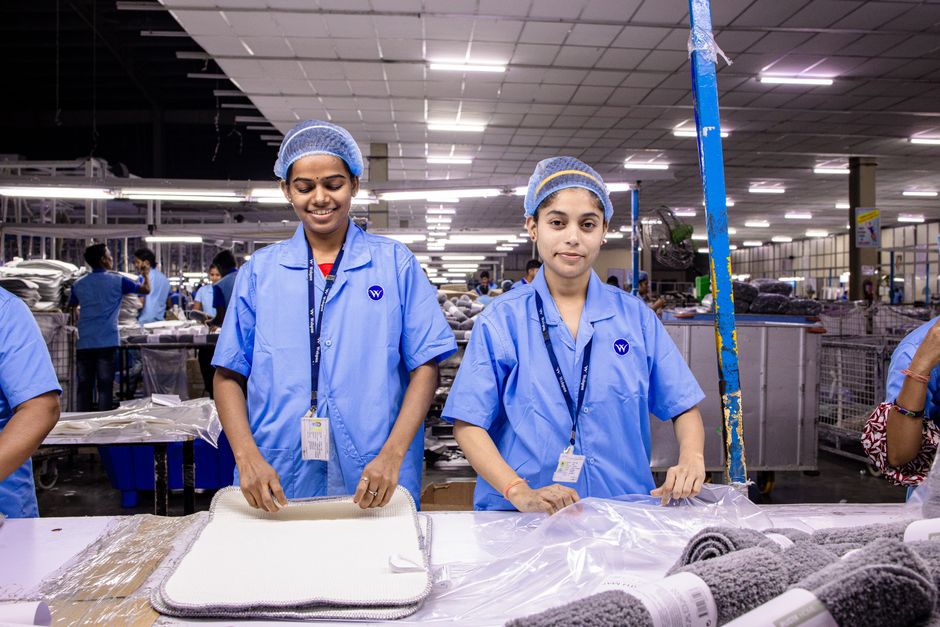
50,000 New Hands: The Unseen Workforce Mobilizing for the iPhone 16 Launch
The ceaseless hum of manufacturing, a symphony of precision and scale, is about to reach a crescendo as Apple prepares for the monumental launch of the iPhone 16. This intricate ballet of technology and human capital involves a surge of approximately 50,000 new assembly line workers, a testament to the sheer volume of production required to meet global demand for the latest iteration of the world’s most iconic smartphone. These individuals, largely drawn from China’s vast industrial heartland, represent a critical, often invisible, component of Apple’s supply chain, enabling the company to transform raw materials and advanced components into the sleek devices that will soon grace millions of pockets. Their arrival signals the intensification of manufacturing cycles, the ramping up of quality control processes, and the meticulous calibration of assembly lines to ensure every iPhone 16 meets Apple’s exacting standards. This influx of labor is not merely a headcount increase; it signifies a complex logistical undertaking, involving recruitment, training, housing, and the integration of a massive, transient workforce into the established production ecosystem.
The recruitment and onboarding of such a substantial workforce present a multifaceted challenge, demanding strategic planning and efficient execution from Apple’s manufacturing partners, primarily Foxconn, Pegatron, and Wistron. These contract manufacturers are responsible for translating Apple’s design and engineering blueprints into tangible products, and the iPhone 16 launch necessitates a significant expansion of their operational capacity. The process typically begins months in advance, with recruitment drives targeting areas with a surplus of labor and a willingness to engage in factory work. This often involves partnerships with labor brokers and direct outreach programs to vocational schools and universities. The sheer scale of the requirement means that the hiring process must be highly streamlined, focusing on identifying individuals with basic dexterity, a capacity for repetitive tasks, and a willingness to adhere to strict operational protocols. Pre-employment screenings, while not overly rigorous in terms of specialized skills, are crucial for ensuring a baseline level of aptitude and reliability.
Upon arrival at the sprawling manufacturing facilities, these 50,000 new workers embark on an intensive training regimen. While the core assembly of an iPhone is highly automated, human intervention remains indispensable for critical tasks such as the delicate placement of micro-components, intricate wiring, and the final quality assurance checks. Training programs are designed to impart the specific skills required for these roles, emphasizing precision, speed, and adherence to standardized operating procedures. This typically involves simulated assembly lines, hands-on practice with specialized tools and equipment, and detailed instruction on quality control protocols. Repetitive training is key, as efficiency and accuracy are paramount in high-volume production. Workers are educated on identifying minute defects, understanding component tolerances, and the correct methods for handling sensitive electronic parts. The goal is to quickly transform raw recruits into competent members of the assembly line, capable of contributing to the product’s timely and flawless manufacture.
The logistical complexities extend beyond recruitment and training to encompass the provision of essential support services for this influx of workers. Housing, meals, and transportation are all critical considerations that require significant investment and meticulous organization. Many of these workers are migrant laborers, often traveling considerable distances from their home regions to work in the manufacturing hubs. Factory dormitories, designed to house thousands, are a common solution, providing basic accommodation and communal living spaces. The catering services must be capable of feeding a massive workforce efficiently and affordably, offering a variety of dietary options to cater to diverse preferences. Transportation networks are established to ferry workers to and from the factories, ensuring punctuality and minimizing disruption to the production schedule. These support systems are not merely an afterthought; they are integral to maintaining worker morale, productivity, and overall operational continuity.
The economic implications of this massive workforce mobilization are profound, both at the local and national levels. For the regions from which these workers are drawn, the influx of employment opportunities, even if temporary, can provide a much-needed economic stimulus. Wages, while often modest by Western standards, represent a significant income for many families. The ripple effect extends to local economies, with increased demand for goods and services from a larger, employed population. At the national level, the iPhone manufacturing sector represents a substantial contributor to China’s GDP and its position as a global manufacturing powerhouse. The continuous need for such large workforces for product launches underscores the enduring reliance on manual labor in the high-tech manufacturing landscape, despite advancements in automation.
However, this reliance on a vast, often transient workforce also raises critical questions about labor practices, worker welfare, and the sustainability of current production models. Reports and investigations into factory conditions have, at times, highlighted concerns regarding long working hours, pressure to meet demanding production quotas, and the potential for worker burnout. Apple, under increasing scrutiny from consumers and advocacy groups, has implemented stricter codes of conduct for its suppliers, emphasizing fair wages, safe working environments, and reasonable working hours. The company conducts regular audits to ensure compliance, though the sheer scale of its supply chain presents ongoing challenges in maintaining absolute oversight. The iPhone 16 launch, with its surge in worker numbers, will undoubtedly be a period where these practices are closely observed.
The technological advancements integrated into the iPhone 16 also influence the nature of the work performed. While automation handles many of the repetitive and highly precise tasks, the introduction of new functionalities or more intricate component designs can necessitate the retraining or augmentation of the human workforce. For instance, if the iPhone 16 incorporates a significantly redesigned camera module or a novel display technology, the assembly line workers will require specialized training on these new components and their integration. This constant evolution in product design demands a reciprocal evolution in workforce training and adaptation, ensuring that human capabilities remain aligned with technological progress. The 50,000 new workers represent not just raw labor, but a malleable resource capable of learning and adapting to the ever-changing demands of smartphone manufacturing.
The global demand for iPhones remains extraordinarily high, driving the need for these massive production ramp-ups. The iPhone is a cultural phenomenon, a status symbol, and a critical tool for communication, entertainment, and productivity for billions worldwide. Each new model generates immense consumer anticipation, translating into pre-order figures that necessitate an immediate and substantial production output. The iPhone 16 launch is no exception, with analysts and industry observers predicting record-breaking sales. To satisfy this voracious appetite, Apple and its manufacturing partners must operate at peak capacity, and the 50,000 new workers are the frontline soldiers in this global production effort. Their contribution is directly tied to the speed at which these highly anticipated devices can be delivered to markets across the globe.
The supply chain for an iPhone is a complex web of hundreds of suppliers contributing thousands of individual components. The assembly process, while concentrated in large facilities, relies on a synchronized flow of parts from diverse sources. The arrival of 50,000 new workers signifies not only the assembly phase but also the increased pressure on upstream suppliers to deliver their components on time and to specification. Any disruption in this delicate chain, from the sourcing of rare earth minerals to the manufacturing of microchips, can have cascading effects. The mobilization of this large workforce underscores the interconnectedness of the global electronics industry and the significant coordination required to bring a single product to market.
The training infrastructure itself is a significant undertaking. Beyond the on-site training within the factories, there’s often a need for dedicated training centers or specialized instructors to manage the onboarding process for such a large cohort. This requires investment in facilities, equipment, and a skilled training workforce. The effectiveness of this training directly impacts production efficiency and defect rates. A well-trained worker is more productive, makes fewer errors, and contributes to a higher-quality end product. Conversely, insufficient or rushed training can lead to costly rework, delays, and a potential negative impact on brand reputation.
The security protocols surrounding iPhone manufacturing are exceptionally stringent. These facilities house highly proprietary technology and intellectual property. The onboarding of tens of thousands of new workers necessitates robust security measures to prevent unauthorized access, information leaks, and the theft of components or finished products. This involves strict access controls, surveillance systems, and comprehensive background checks, all of which add another layer of complexity to the management of this vast workforce.
The social and environmental impact of such large-scale industrial operations is also a topic of ongoing discussion. The concentration of tens of thousands of workers in a relatively confined area can place a strain on local infrastructure and resources. Furthermore, the energy consumption and waste generated by massive manufacturing facilities are significant. While Apple and its partners are increasingly investing in renewable energy sources and waste reduction initiatives, the sheer scale of production associated with a major product launch like the iPhone 16 inevitably carries an environmental footprint. The integration of 50,000 new workers into this ecosystem necessitates a careful balance between production demands and responsible corporate citizenship.
The seasonal nature of smartphone launches means that this large workforce mobilization is often temporary. Workers are hired for the peak production period leading up to and immediately following the launch. While some may transition to other production lines or remain for subsequent product cycles, there is a significant churn in the workforce. Managing this ebb and flow requires flexible operational strategies and an understanding of the cyclical nature of consumer electronics demand. The 50,000 fresh hands are a testament to the intense, concentrated effort required for a successful iPhone launch, highlighting both the power and the transient nature of global manufacturing labor.