Iphone Photography Basics Edit Iphone Photos The Right Way

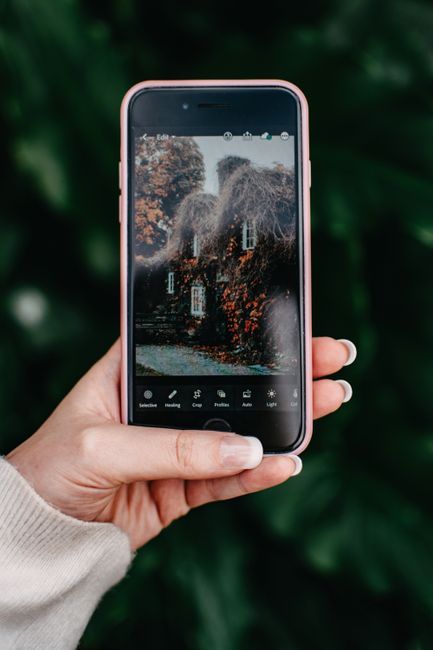
iPhone Photography Basics: Edit iPhone Photos the Right Way
The iPhone camera has evolved from a novelty to a powerful imaging tool, capable of producing stunning photographs with minimal effort. However, unlocking the full potential of your iPhone camera and achieving professional-looking results often hinges on effective editing. This guide delves into the fundamental principles of iPhone photography and provides a comprehensive, SEO-friendly approach to editing your iPhone photos correctly, ensuring your images stand out and attract engagement. Mastering these techniques will elevate your mobile photography from casual snapshots to impactful visual storytelling.
Understanding the core principles of good photography is the bedrock upon which effective editing is built. Before even touching an editing app, consider composition, lighting, and subject matter. The rule of thirds, leading lines, symmetry, and negative space are fundamental compositional guidelines that create visually pleasing images. Pay close attention to the light: is it harsh and direct, or soft and diffused? Backlighting can create dramatic silhouettes, while side lighting can reveal texture and form. Identifying your subject and ensuring it’s clear and well-defined is paramount. A blurry or indistinct subject, no matter how expertly edited, will struggle to resonate. These foundational photographic elements, when addressed during the shooting phase, dramatically reduce the amount of corrective editing required and lead to more impactful final images. SEO for photography often starts with creating unique, high-quality content, and an image with strong inherent photographic merit is more likely to be shared and appreciated, indirectly boosting its visibility.
The iPhone’s native Photos app offers a surprisingly robust suite of editing tools, making it an excellent starting point for many users. The basic adjustments available within this app – exposure, brilliance, highlights, shadows, contrast, brightness, black point, saturation, vibrance, warmth, tint, and sharpness – are the workhorses of digital photo editing. Exposure controls the overall brightness of the image. Brilliance is a smart adjustment that brightens shadows and darkens highlights subtly. Highlights and shadows allow for more targeted control over the brightest and darkest areas of your image, respectively, without affecting the midtones as much. Contrast dictates the difference between light and dark areas, adding punch and definition. Brightness is a more general overall adjustment. Black point sets the darkest point in your image, impacting shadow detail. Saturation affects the intensity of all colors equally, while vibrance selectively boosts less saturated colors, preventing skin tones from looking overly orange. Warmth adjusts the color temperature, making an image appear more yellow/orange (warm) or blue/purple (cool). Tint allows for subtle shifts in green and magenta. Sharpness enhances the definition of edges, making details appear crisper. Mastering these sliders individually and in combination is crucial for making basic but significant improvements to your photos. When discussing these tools for SEO, use keywords like "iPhone photo editing," "basic photo adjustments," "exposure control," and "color correction iPhone."
Beyond the fundamental sliders, the iPhone Photos app also offers sophisticated tools for refining your images. Cropping and straightening are essential for improving composition and correcting tilted horizons. The auto-enhance feature, while sometimes overzealous, can provide a quick starting point for edits. More advanced users will appreciate the ability to adjust individual color channels (RGB) within the editing interface, offering finer control over color balance. For portraits, the Portrait Mode’s depth-of-field effect can be further refined in post-processing, allowing you to adjust the aperture simulation and focus points. For those shooting in RAW format (available on newer iPhones with compatible apps), the editing potential is exponentially greater, offering much more latitude in recovering detail and adjusting colors without introducing artifacts. This level of detail is valuable for SEO when targeting advanced mobile photographers seeking "RAW photo editing iPhone" or "professional iPhone photo edits."
The advent of third-party editing apps has dramatically expanded the creative possibilities for iPhone photographers. Apps like Snapseed, Adobe Lightroom Mobile, VSCO, and Picsart offer a wide array of tools, from advanced masking and selective adjustments to artistic filters and creative effects. Snapseed, a free app by Google, is particularly powerful, offering tools like selective adjust, healing, perspective correction, and brush tools that allow for precise edits on specific areas of your image. Adobe Lightroom Mobile provides a professional-grade workflow, with extensive control over tone, color, detail, and effects, and integrates seamlessly with desktop Lightroom. VSCO is renowned for its aesthetically pleasing filters, often emulating classic film stocks, and offers a robust set of editing tools. Picsart caters to a more creative and experimental audience, with features for collages, text overlays, and a vast library of stickers and effects. When recommending these apps for SEO, use terms like "best iPhone editing apps," "free photo editor iPhone," "mobile photography workflow," and "advanced iPhone photo editing."
When editing iPhone photos, a strategic approach is key to achieving natural and impactful results. The goal of editing is rarely to completely transform an image but rather to enhance its existing qualities and correct minor flaws. Over-editing is a common pitfall, leading to unnatural colors, excessive noise, or a plastic-like appearance. A good editing workflow often begins with global adjustments, such as exposure and contrast, followed by more targeted edits like selective color adjustments or localized sharpening. Think of it as a sculptor working on a block of marble: you start by removing large chunks and then refine the details. For instance, if a sky is blown out, you might first adjust highlights globally, then use a selective adjustment tool to further recover detail in that specific area. Similarly, if a subject is too dark, you’d lift shadows, but if only a portion needs brightening, a local adjustment is more appropriate. This layered approach ensures that each adjustment builds upon the previous one, creating a harmonious final image. Keywords for SEO here include "natural iPhone photo editing," "subtle photo edits," and "avoiding over-editing iPhone photos."
Color correction is a vital aspect of iPhone photo editing. Maintaining realistic color representation is often the primary objective, especially for documentation or product photography. However, there are also creative applications of color manipulation. For instance, a slight shift towards cooler tones can evoke a sense of calm or melancholy, while warmer tones can create a feeling of coziness or energy. Understanding the color wheel and how complementary and analogous colors interact can inform your editing decisions. Using the white balance tool to ensure that white objects appear truly white is a fundamental step in achieving accurate color. From there, you can fine-tune saturation and vibrance, and even adjust individual color hues to create specific moods or emphasize certain elements. When discussing color correction for SEO, use phrases like "iPhone color grading," "white balance correction iPhone," "saturation vs. vibrance iPhone," and "moody photo editing iPhone."
Sharpening is another tool that requires careful application. While a sharp image is generally desirable, over-sharpening can introduce halos around edges and amplify digital noise, making the image look artificial and grainy. It’s often best to apply sharpening as one of the final steps in your editing process, after all other adjustments have been made. Start with a subtle amount and zoom in to observe the effect. Look for an improvement in detail definition without the appearance of unnatural artifacts. Many editing apps offer sharpening controls that allow you to adjust the radius (the size of the area affected by sharpening) and detail (the amount of sharpening applied). Understanding these parameters allows for more precise control. For SEO, consider keywords like "iPhone sharpening tips," "avoiding over-sharpening," and "crisp iPhone photos."
Noise reduction is a crucial tool for low-light photography. When you shoot in dimly lit conditions, your iPhone camera’s sensor is pushed to its limits, often resulting in digital noise, which appears as graininess. Most editing apps offer noise reduction tools, allowing you to smooth out this grain. However, aggressive noise reduction can also soften details and make the image appear blurry or smudgy. The key is to find a balance: reduce enough noise to make the image look clean without sacrificing essential detail. This often involves adjusting both luminance noise (graininess) and color noise (colored speckles). Similar to sharpening, it’s best to apply noise reduction after other adjustments have been made, as some edits can reintroduce noise. For SEO, use terms like "iPhone low light photography tips," "reducing noise iPhone photos," and "clean iPhone images."
Selective editing, or localized adjustments, is where many iPhone photographers find they can make the most impactful improvements. Instead of applying an adjustment to the entire image, selective editing allows you to target specific areas. This is particularly useful for portraits, landscapes, and product shots. For instance, you might want to brighten a subject’s face without making the background too bright, or enhance the blue of the sky without oversaturating other colors. Apps like Snapseed and Lightroom Mobile excel at this, offering brush tools, gradient filters, and radial filters that allow you to apply adjustments like exposure, contrast, saturation, and sharpness to precise regions of your image. Mastering selective editing transforms your ability to guide the viewer’s eye and emphasize key elements within your photograph. Keywords for SEO in this context include "iPhone selective editing," "local adjustments iPhone," "portrait retouching iPhone," and "landscape enhancement iPhone."
When editing portraits specifically, several considerations come into play. Beyond general exposure and color correction, you might want to subtly smooth skin texture, reduce blemishes, or brighten eyes. However, it’s crucial to avoid overdoing these edits, which can lead to an unnatural, airbrushed look. Gentle retouching that enhances the subject’s natural beauty is usually the most effective approach. Many apps offer dedicated portrait enhancement tools, but manual adjustments using brushes and selective tools can often yield more nuanced results. For SEO, use terms like "iPhone portrait editing," "natural skin retouching iPhone," and "enhancing eyes iPhone."
For those looking to inject artistic flair into their iPhone photos, filters and presets are popular tools. While often associated with quick social media posts, professional photographers also utilize presets for consistent branding and stylistic consistency. When using filters, the key is to choose ones that complement your image and enhance its mood or message, rather than overpower it. Many apps offer a wide range of filters, and some, like VSCO and Lightroom Mobile, allow for further customization of these presets. Experimenting with different filters and understanding their underlying adjustments can help you develop your own unique editing style. For SEO, use phrases like "iPhone photo filters," "VSCO presets iPhone," "Lightroom mobile presets," and "developing a photo editing style."
Post-processing is an integral part of the iPhone photography workflow, transforming raw captures into compelling visual narratives. By understanding the basic tools within the Photos app and leveraging the power of third-party applications, iPhone users can significantly elevate the quality and impact of their images. The key lies in a thoughtful, deliberate approach, focusing on enhancing rather than altering, and always striving for a natural and aesthetically pleasing result. Consistent practice and experimentation with different techniques and apps will further refine your skills, allowing you to consistently produce stunning photographs with your iPhone. For comprehensive SEO coverage, remember to incorporate keywords related to specific editing tasks and app functionalities throughout your content, making it easily discoverable by users seeking to improve their iPhone photography.


