Speed Up Your Iphone Keyboard Typing With This Little Known Technique Everyone Should Master

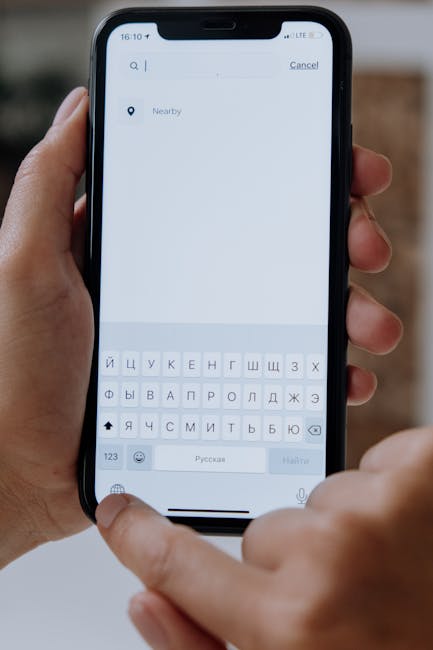
Unlock Lightning-Fast Typing: The Little-Known iPhone Keyboard Technique Everyone Needs to Master
The iPhone keyboard is a ubiquitous tool for communication, but for many users, typing remains a bottleneck, a slow process that hinders efficiency and enjoyment. While the built-in QuickType predictions and autocorrect are helpful, they are merely scratching the surface of the iPhone keyboard’s true potential. There exists a powerful, yet often overlooked, technique that can dramatically accelerate your typing speed, transforming your iPhone from a device that requires deliberate keystrokes into an extension of your thoughts. This technique is not about learning a new layout or downloading a third-party app; it’s about mastering a nuanced gesture that leverages the keyboard’s inherent capabilities in a way that most users never discover. This article will delve deep into this technique, providing a comprehensive guide to its implementation and showcasing its transformative power for anyone who regularly uses their iPhone for text-based communication. We will explore the underlying mechanics, offer practical exercises for skill development, and discuss advanced strategies to integrate this into your everyday typing workflow. Forget the tedious hunt-and-peck, the constant backtracking for autocorrect errors, and the frustration of slow message composition. Prepare to unlock a level of typing proficiency that will surprise you and those you communicate with.
The little-known technique in question is the deliberate use and mastery of the swipe-to-type gesture, combined with intelligent word prediction and a nuanced understanding of sentence flow. While many users may have accidentally swiped across their keyboard once or twice, mistaking it for an accidental input, the true power lies in its intentional and consistent application. This isn’t simply about sliding your finger from one letter to another; it’s a fluid, almost intuitive motion that allows you to "draw" words with remarkable speed and accuracy. The magic happens when this gesture is combined with the iPhone’s predictive text engine. As you swipe, the keyboard analyzes the sequence of letters you’ve touched, anticipating the most probable word you intend to form. This predictive capability, when harnessed effectively with the swipe gesture, allows you to form entire words with a single continuous movement, significantly reducing the number of individual finger taps required.
Let’s break down the mechanics. Instead of tapping each letter individually, imagine your finger tracing a path that outlines the shape of the word. For "hello," you would start on "h," glide to "e," then "l," another "l," and finally "o," all without lifting your finger. The iPhone’s software is sophisticated enough to detect this continuous motion and, based on the letters touched and the context of your typing, suggest the intended word. The key to mastering this technique lies in developing muscle memory for common word shapes and understanding how your finger’s path correlates with the predicted output. It’s a skill that, like any other, requires practice and deliberate effort to develop.
The initial barrier for many users is the perceived inaccuracy or the feeling of losing control. When you’re accustomed to the precise nature of tapping, the fluid motion of swiping can feel less deterministic. However, this perception is often a misunderstanding of how the swipe gesture interacts with prediction. The iPhone keyboard isn’t expecting you to perfectly hit every single letter’s center. Instead, it’s analyzing the general trajectory and the sequence of letters you’ve entered within that motion. If you slightly miss the "o" in "hello" but your path clearly indicates the letters h-e-l-l-o in order, the system is highly likely to predict "hello" correctly. The more you practice, the more you’ll develop an intuitive understanding of how much deviation is acceptable and how to guide your swipe to ensure accurate predictions.
To effectively implement this technique, you need to consciously shift your mindset from a tap-based approach to a gesture-based one. This means actively choosing to swipe instead of tap for most words. Start with shorter, more common words. As your confidence grows, move on to longer words and then to multi-word phrases. The iPhone’s QuickType bar, which displays predicted words above the keyboard, becomes your crucial ally in this process. As you swipe, observe the predictions. Initially, you might find yourself correcting incorrect predictions. This is a normal part of the learning curve. However, with consistent practice, you’ll notice that the predictions become increasingly accurate, and you’ll be able to select the correct word with a quick tap on the prediction bar or by continuing your swipe to the spacebar.
Consider the "spacebar" itself. With the swipe-to-type gesture, you don’t need to lift your finger to tap the spacebar after forming a word. You can often smoothly transition your swipe from the last letter of a word directly to the spacebar. This seemingly minor optimization further reduces the number of separate finger movements, contributing to a significant increase in overall typing speed. It’s about creating a continuous flow from word to word, eliminating the pauses that are inherent in a tap-based approach.
The real power of this technique is amplified when you start to understand how the iPhone’s predictive engine learns your vocabulary. The more you use the swipe-to-type method with your common words and phrases, the better the system becomes at anticipating your needs. It starts to recognize your personal shorthand, your common greetings, and your frequently used expressions. This personalized prediction engine is a vital component of achieving lightning-fast typing. It’s not just about the gesture; it’s about the synergy between the gesture and the intelligent software.
Let’s outline a structured approach to mastering this technique.
Phase 1: Foundational Swiping (Days 1-3)
- Focus: Simple, one-word inputs.
- Action: Intentionally swipe every single word you type. Start with short words (e.g., "the," "and," "is," "it," "you," "to"). Observe the predictions carefully.
- Goal: Develop basic muscle memory for tracing word shapes and become comfortable with the visual feedback of the predicted words. Don’t worry about speed yet; focus on accuracy of input. If a prediction is incorrect, gently correct it and continue.
Phase 2: Expanding Vocabulary and Sentence Construction (Days 4-7)
- Focus: Longer words and the transition between words.
- Action: Begin swiping longer words (e.g., "keyboard," "technique," "essential," "understanding"). Practice swiping from the last letter of a word directly to the spacebar. Start forming simple sentences by chaining swiped words together.
- Goal: Improve the accuracy of longer word predictions and develop a fluid transition between words. You should start noticing the QuickType bar offering more relevant suggestions.
Phase 3: Integrating with QuickType and Autocorrect (Week 2)
- Focus: Leveraging the QuickType bar and understanding predictive patterns.
- Action: Pay close attention to the three words offered in the QuickType bar. Often, one of them will be exactly what you intended. Learn to quickly glance up and tap the correct prediction. Experiment with swiping slightly different paths for the same word to see how it affects predictions.
- Goal: Develop the ability to seamlessly integrate QuickType predictions with your swiping, further accelerating word selection. You’ll start to anticipate what the keyboard will suggest.
Phase 4: Advanced Optimization and Personalization (Week 3 onwards)
- Focus: Speed, efficiency, and personalized vocabulary.
- Action: Challenge yourself with speed. Try to complete common tasks (e.g., composing a short email, sending a quick text) as fast as possible using only swiping. Start incorporating your own frequently used phrases and slang. The more you use them, the more the keyboard will learn to predict them.
- Goal: Achieve a consistently high typing speed and have the keyboard accurately predict your personal language patterns.
Common Pitfalls and How to Overcome Them:
- Overcorrection: Initially, you might find yourself correcting almost every prediction. This is a sign of not yet trusting the system or not yet having developed accurate swipe paths. Be patient. As you practice, your accuracy will improve, and the need for correction will diminish.
- "Finger fatigue": Some users report feeling more strain with swiping. This is usually due to an unnatural grip or tense posture. Experiment with different grips and relax your hand and wrist. The goal is a fluid, relaxed motion, not a rigid one.
- Specific Letter Difficulty: Certain letter combinations can be trickier. For example, words with apostrophes (e.g., "it’s," "don’t") require you to swipe through the apostrophe as well. Practice these specific sequences. The keyboard is designed to recognize the apostrophe as a valid input within a swipe.
- Ignoring QuickType: Some users, after learning to swipe, forget about the valuable QuickType bar. Remember, it’s a powerful tool to augment your swiping. A quick glance and tap can often be faster than trying to perfectly swipe a complex word.
Beyond the Basics: Advanced Strategies for Peak Performance
Once you’ve mastered the fundamental swipe-to-type technique, consider these advanced strategies to elevate your iPhone typing to its absolute zenith:
- Leveraging Predictive Text for Punctuation: While not a direct swipe-to-type function, intelligently using the QuickType bar for punctuation can also save time. Frequently used punctuation marks like periods, commas, and question marks will often appear as predictions. Get into the habit of glancing at the QuickType bar for these as well.
- The Power of Context: The iPhone’s predictive text is highly context-aware. If you’ve just typed "I’m going to the…", the QuickType bar will be primed with words like "store," "park," "movies," etc. By swiping with this context in mind, you’re guiding the prediction engine to your intended word even more effectively.
- Proactive Word Prediction: As you become more adept, you’ll start to anticipate what the keyboard will predict before you even finish your swipe. This is a sign of true mastery. You can then subtly adjust your swipe path to steer the prediction towards your desired word.
- Customizing Text Replacements: While not directly part of the swipe technique, utilizing text replacements for extremely common, long phrases can further boost speed. For example, you could set up "omw" to expand to "On my way!" This complements the swipe gesture by handling those very specific, repetitive inputs.
- Ergonomics and Efficiency: Experiment with different ways of holding your iPhone. Some users find better results with a two-handed grip, while others prefer a single-handed approach. The key is to find a position that allows for relaxed wrist and finger movement. Avoid tensing up.
- Continuous Learning: The iPhone’s predictive text engine is constantly learning. Make a conscious effort to use your unique vocabulary and phrasing. The more you use it, the smarter it gets, and the faster you become.
The swipe-to-type technique, when combined with an intelligent understanding of predictive text and a commitment to practice, is arguably the most efficient way to type on an iPhone. It transforms the keyboard from a series of discrete buttons into a fluid interface for expressing your thoughts. This is not a feature that requires elaborate setup or a steep learning curve if approached systematically. It’s a built-in capability waiting to be unlocked. By dedicating even a few minutes each day to practicing this technique, you will witness a dramatic improvement in your typing speed and overall iPhone productivity. Stop thinking of typing as a chore and start experiencing it as an effortless flow of information. Master this one little-known technique, and you’ll forever change how you interact with your iPhone.


