Bridging the Digital Divide AudioEye’s Hybrid AI and Human Strategy Redefines Global Web Accessibility Standards

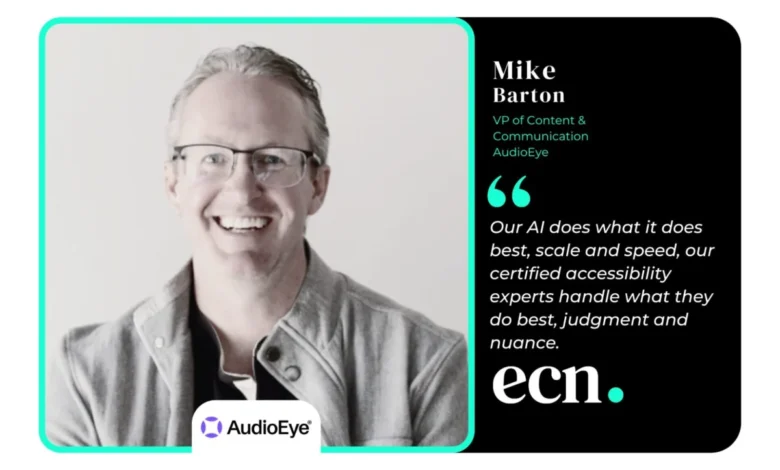
The modern internet is frequently characterized as the ultimate democratic tool, providing unprecedented access to information, commerce, and social connection; however, for the 1.3 billion people worldwide living with disabilities, significant portions of the digital landscape remain functionally off-limits. As the global economy shifts toward a "digital-first" reality, the importance of web accessibility has transitioned from a niche technical concern to a critical business imperative. AudioEye, a leading digital accessibility platform, is currently at the forefront of this shift, utilizing a sophisticated hybrid model that combines artificial intelligence with human expertise to ensure that the web remains open to everyone. According to Mike Barton, Vice President of Content Marketing and Communications at AudioEye, the company’s vision is to transform accessibility from a secondary consideration or a defensive legal maneuver into the default standard for all digital experiences.
The Evolution of Digital Accessibility Standards
For nearly two decades, the concept of digital accessibility has undergone a radical transformation. In the early 2000s, making a website accessible was often viewed as a voluntary "checkbox" exercise, primarily practiced by government agencies or large educational institutions. Today, the landscape is defined by rigorous legal frameworks, shifting consumer expectations, and a massive economic incentive. Statistics indicate that people with disabilities, along with their families and friends, represent a global spending power of approximately $18 trillion. Despite this, a significant number of e-commerce platforms and service providers continue to alienate this demographic. Research suggests that seven out of ten users with disabilities will abandon a website if it presents navigation barriers, typically moving their business to a competitor with a more inclusive interface.
The legal environment has acted as a primary catalyst for change. In the United States, lawsuits related to the Americans with Disabilities Act (ADA) have doubled over the last five years. Furthermore, the European Accessibility Act (EAA), which came into full force in 2025, has expanded the scope of regulation beyond European borders, affecting any international business that serves customers within the European Union. This global regulatory squeeze has forced organizations to seek scalable solutions that can keep pace with the rapid rate of digital content creation.
The AudioEye Hybrid Model: AI Scale and Human Context
One of the most significant challenges in the field of digital accessibility is the sheer volume of content. Modern websites are dynamic, frequently updated, and composed of thousands of individual pages. Traditional manual audits, while thorough, are often too slow and expensive to be effective for large-scale enterprises. Conversely, purely automated "widgets" or AI-only solutions frequently fail to capture the nuance of user intent, leading to a false sense of security and leaving critical gaps in the user experience.
AudioEye addresses this through a hybrid approach. The platform’s JavaScript integrates into a website’s existing architecture—much like a standard analytics tool or cookie banner—and immediately begins scanning the rendered pages against the Web Content Accessibility Guidelines (WCAG). According to an independent 2026 study by Adience, AudioEye’s AI detects up to 2.5 times more issues than competing automated tools. Approximately 50 percent of these issues, such as missing alternative text for images, broken form labels, and heading structure errors, are corrected automatically in real-time.
However, AudioEye maintains that automation alone is insufficient. The most complex barriers to accessibility often reside in "gray areas" where context is key. For example, an AI might recognize that a button exists, but it may not understand the specific intent of that button within a complex multi-step checkout process. To solve this, AudioEye employs certified accessibility specialists, including individuals who live with disabilities and use assistive technologies like screen readers in their daily lives. These experts conduct deep-dive audits to identify what the AI cannot see, deploying custom code fixes directly through the platform. This methodology results in roughly 97 percent of accessibility issues being resolved before a company’s internal development team even needs to intervene.
The Business Case for Inclusion in E-commerce
While compliance is a major driver, the business benefits of accessibility extend far into revenue growth and brand loyalty. This is particularly evident in the e-commerce sector, which currently accounts for 78 percent of all accessibility-related lawsuits. For online retailers, an accessible site is a conversion engine. When a site is optimized for screen readers and keyboard navigation, it typically results in lower bounce rates and higher search engine optimization (SEO) rankings, as search engine crawlers prioritize many of the same structural elements that make a site accessible.
Furthermore, a new frontier in digital discovery is emerging: AI-driven agents. As consumers increasingly use autonomous AI assistants to find products and information, these agents rely on a website’s "accessibility tree"—the underlying code structure that describes elements to assistive technology—to understand the site’s content. A site that is not accessible to a human using a screen reader is effectively invisible to an AI agent, representing a significant risk to future discoverability and sales.
Chronology of Regulatory Milestones
The timeline of digital accessibility is marked by several key milestones that have shaped the current corporate responsibility landscape:
- 1990: The Americans with Disabilities Act (ADA) is signed into law, though it primarily focused on physical spaces at the time.
- 1999: The first version of the Web Content Accessibility Guidelines (WCAG 1.0) is published, providing the first international framework for web developers.
- 2008: WCAG 2.0 is released, introducing the four principles of accessibility: Perceivable, Operable, Understandable, and Robust (POUR).
- 2018: The U.S. Department of Justice (DOJ) clarifies that the ADA applies to all "public accommodations," including websites.
- 2020-2024: A period of explosive growth in litigation, with thousands of demand letters sent to small and medium-sized businesses annually.
- 2025: The European Accessibility Act (EAA) takes effect, mandating accessibility for a wide range of products and services, including e-commerce, banking, and transportation.
Mitigating Legal Risk and Ensuring Compliance
For many organizations, the primary fear regarding accessibility is the "demand letter"—a legal notice alleging ADA non-compliance. AudioEye’s strategy for legal protection is built on the principle that true compliance is a byproduct of high-quality work rather than a one-time fix. The company provides a legal guarantee that goes beyond typical industry warranties. If a customer receives a claim, AudioEye’s team validates the allegation, produces an expert "debunk report" if the claim is unfounded, and works directly with the client’s legal counsel.
AudioEye claims that its hybrid approach provides 300 percent more legal protection than traditional fix-at-source consulting and 400 percent more than automation-only widgets. This is supported by the fact that AudioEye is currently the only vendor in the space with a documented courtroom dismissal, a critical metric for businesses looking to minimize their litigation exposure.
Technical Integration and Workflow Efficiency
A common concern among Chief Technology Officers (CTOs) and digital teams is the potential for new tools to disrupt existing workflows or slow down website performance. AudioEye addresses this by minimizing the burden on internal engineering teams. Because the platform operates via a single line of JavaScript, it is compatible with various Content Management Systems (CMS), headless architectures, and custom builds.
For the small percentage of issues that cannot be fixed through the platform—typically less than 5 percent—AudioEye provides detailed "source feedback reports." these reports give developers clear, actionable instructions on how to modify the underlying source code. This allows internal teams to focus on high-level innovation rather than spending hundreds of hours on manual remediation tasks. All findings and fixes are centralized in a single dashboard, providing transparency and a clear audit trail for compliance officers.
Implications for the Future of the Global Web
As AI continues to reshape how the internet is built and consumed, the future of digital accessibility faces a unique paradox. On one hand, general-purpose AI coding tools are currently generating a more inaccessible internet at a faster rate than ever before, as they are often trained on existing codebases that contain accessibility errors. On the other hand, specialized AI, like that developed by AudioEye, is becoming more adept at detecting and correcting these errors in real-time.
The global regulatory landscape is also expected to tighten further. As more jurisdictions follow the lead of the EU and the US, the "compliance map" for multinational corporations will continue to expand. The companies that will thrive in this environment are those that view accessibility not as a burden, but as a fundamental component of user experience design.
In conclusion, the work being done by organizations like AudioEye suggests a shift toward a more inclusive digital future. By balancing the speed of AI with the nuance of human judgment, businesses can protect themselves from legal risk while simultaneously opening their doors to a massive and underserved global market. As Mike Barton notes, the goal is a world where accessibility is the default, ensuring that the digital world truly works for everyone, regardless of their physical or cognitive abilities.