How to Fix Action Camera Aliasing and Jagged Edges in Adobe After Effects Using Free Tools

Modern action cameras, drones, and smartphones have revolutionized the landscape of independent filmmaking, extreme sports videography, and content creation. By packing remarkably high-resolution recording capabilities—such as 4K and 5K capture—into ultra-portable, rugged form factors, manufacturers have democratized cinematic storytelling. Creators can now mount high-definition cameras onto racing drones, bicycle handlebars, surfboards, and automobile bumpers to capture dynamic, high-octane perspectives that were once prohibitively expensive or technically impossible to achieve.
However, this technological leap comes with distinct optical and digital compromises. One of the most persistent and frustrating visual defects plaguing high-resolution, compact-camera footage is aliasing. Characterized by jagged, stair-stepped edges and distracting flickering on fine patterns, aliasing can instantly diminish the professional quality of a video project. Addressing this artifact has historically required clumsy post-production workarounds that sacrificed overall image fidelity. Fortunately, recent advancements in workflow techniques and specialized plugins, such as the free FXAA tool developed by Plugin Everything for Adobe After Effects, offer editors a targeted, efficient solution to restore visual integrity to compressed action footage.
Understanding the Mechanics of Aliasing in Digital Video

To effectively mitigate aliasing, post-production professionals must first understand the root cause of the phenomenon. In the realm of digital signal processing and cinematography, aliasing is a spatial distortion artifact that occurs during the image-sampling process. When a camera sensor records a scene containing high-frequency details—such as distant foliage, architectural brickwork, shimmering water ripples, or power lines—the sensor must translate these fine elements into discrete pixels.
When the spatial frequency of the subject exceeds the spatial resolution of the camera sensor, a sampling error occurs. The sensor fails to accurately capture the fine data, resulting in jagged diagonal lines and high-contrast pixel shimmering that changes erratically from frame to frame. This issue is exacerbated in action cameras due to hardware constraints. Because action cameras must remain lightweight and compact, they rely on physically small image sensors. To compensate for diffraction-induced softness inherent in tiny lenses, manufacturers frequently bake aggressive digital sharpening algorithms directly into the camera’s firmware. This heavy-handed in-camera sharpening amplifies high-frequency contrast around edges, inadvertently highlighting sampling errors and making aliasing drastically more apparent. Furthermore, heavy inter-frame and intra-frame video compression algorithms—utilized to keep file sizes manageable for high frame rate action recording—frequently interact with aliasing artifacts, resulting in mosquito noise and macroblocking that further degrades the visual aesthetic.
The Evolution of Post-Production Mitigation Strategies
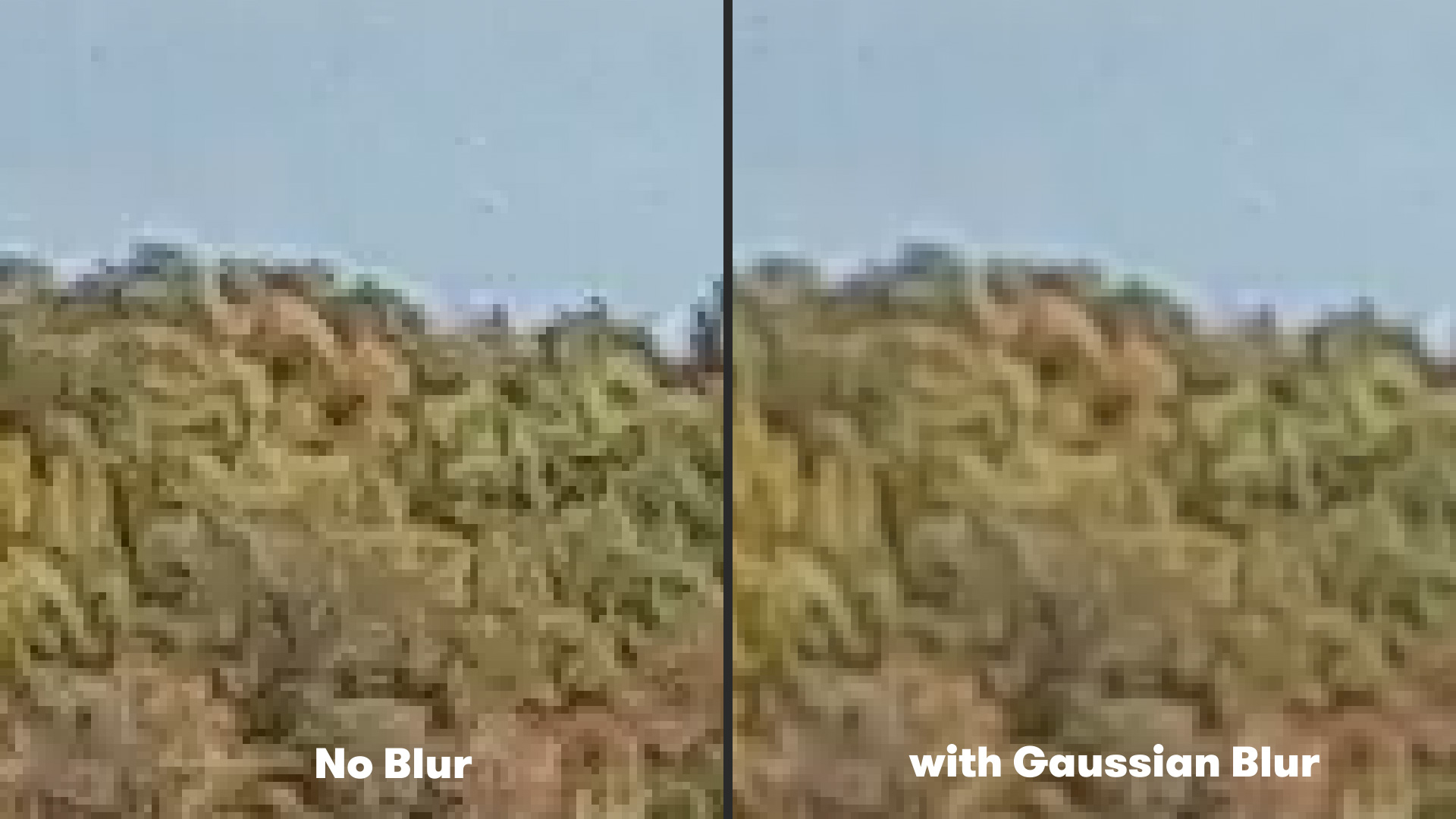
For years, video editors working with severe action camera footage had limited options for combating aliasing during the post-production phase. The traditional method relied upon applying a uniform, global Gaussian blur to the entire video clip. By slightly softening the image, editors could effectively dull the high-frequency contrast that caused jagged edges to shimmer.
While this technique marginally reduced distracting aliasing artifacts, it introduced a significant compromise: the loss of critical image sharpness across the entire frame. Textures, background landscapes, and essential focal points that did not suffer from aliasing were unnecessarily degraded, resulting in a muddy, out-of-focus look that contradicted the high-resolution promises of 4K capture. Colorists and online editors frequently attempted to isolate problem areas using complex garbage masks, tracking, and secondary color correction layers, but these labor-intensive workflows added hours to post-production timelines and rarely yielded seamless results. As action sports content creation scaled up in volume, the industry desperately required a smarter, algorithmic approach to edge smoothing that targeted only the flawed pixels without compromising overall project clarity.
The Introduction of FXAA: A Streamlined Open-Source Solution
Recognizing the widespread frustration among editors handling compressed and over-sharpened footage, developer community Plugin Everything introduced FXAA (Fast Approximate Anti-Aliasing) as a complimentary plugin designed specifically for Adobe After Effects. Originally rooted in real-time computer graphics and video game rendering—where performance optimization is paramount—FXAA adapts edge-smoothing methodologies for digital video pipelines.
Unlike traditional global blurring filters that treat every pixel equally, FXAA utilizes a sophisticated edge-detection algorithm. When applied to a composition, the plugin scans the frame for high-contrast boundaries and diagonal lines indicative of aliasing. Once identified, the algorithm selectively applies a localized, intelligent smoothing process exclusively to those jagged edges, leaving flat surfaces, skin tones, and non-aliased details untouched. Because the computational load is focused strictly on edge detection rather than broad-spectrum pixel manipulation, FXAA renders at exceptionally high speeds, making it an ideal addition to fast-paced commercial and documentary editing suites.
Step-by-Step Implementation in Adobe After Effects
Integrating FXAA into a standard After Effects post-production workflow requires minimal technical friction, allowing editors to correct footage efficiently within minutes.
- Import and Composition Setup: Begin by importing the affected action camera, drone, or smartphone footage into Adobe After Effects and dragging it into a new composition matching the media’s native frame rate and resolution.
- Locating the Plugin: Navigate to the Effects and Presets panel, locate the Plugin Everything category, and select the FXAA effect. Alternatively, users can access the effect through the top menu bar by navigating to Effect, selecting Plugin Everything, and clicking on FXAA.
- Application: Simply drag and drop the FXAA effect onto the targeted footage layer in the timeline. Upon application, the algorithm instantly evaluates the pixel grid and smooths out prominent stair-stepped diagonals and shimmering water or urban backgrounds.
- Stacking for Enhanced Results: For extreme cases of aliasing originating from ultra-wide-angle action camera lenses or heavily compressed bitrates, a single instance of the plugin may occasionally prove insufficient. A key advantage of the FXAA architecture is its stackability. Editors can apply multiple instances of the FXAA effect sequentially to the same footage layer, progressively subduing stubborn artifacts without catastrophic loss of foundational image detail.
Broader Industry Implications and Alternative Enhancements
The availability of specialized, lightweight post-production tools like FXAA reflects a broader shift in modern digital filmmaking. As consumer-grade and prosumer camera technology continues to prioritize accessibility and high frame-rate capabilities over optical perfection, the burden of polish increasingly falls upon post-production software engineers. By addressing optical shortcomings programmatically, creators can maximize the utility of affordable hardware configurations without investing heavily in specialized cinema glass.
Beyond aliasing mitigation, comprehensive workflows for action camera footage often require addressing other prevalent physical anomalies, such as extreme lens distortion and sensor vibration. Industry professionals frequently pair anti-aliasing plugins with advanced stabilization software, such as dedicated image stabilization applications, to smooth out the erratic camera movements inherent to high-speed mounting setups. By combining targeted edge-smoothing algorithms with robust stabilization, editors can elevate shaky, pixelated action clips to broadcast-ready standards. Ultimately, tools like FXAA bridge the gap between rugged, real-world data capture and polished, professional exhibition, ensuring that creators retain complete artistic control over their visual narratives regardless of the recording environment.